- Published on
- · July 10, 2026
npx: how to run npm packages without installing them
- Blog

- Henrico Piubello
- Henrico Piubello
- IT Specialist - Grupo Voitto
IT Specialist - Grupo Voitto
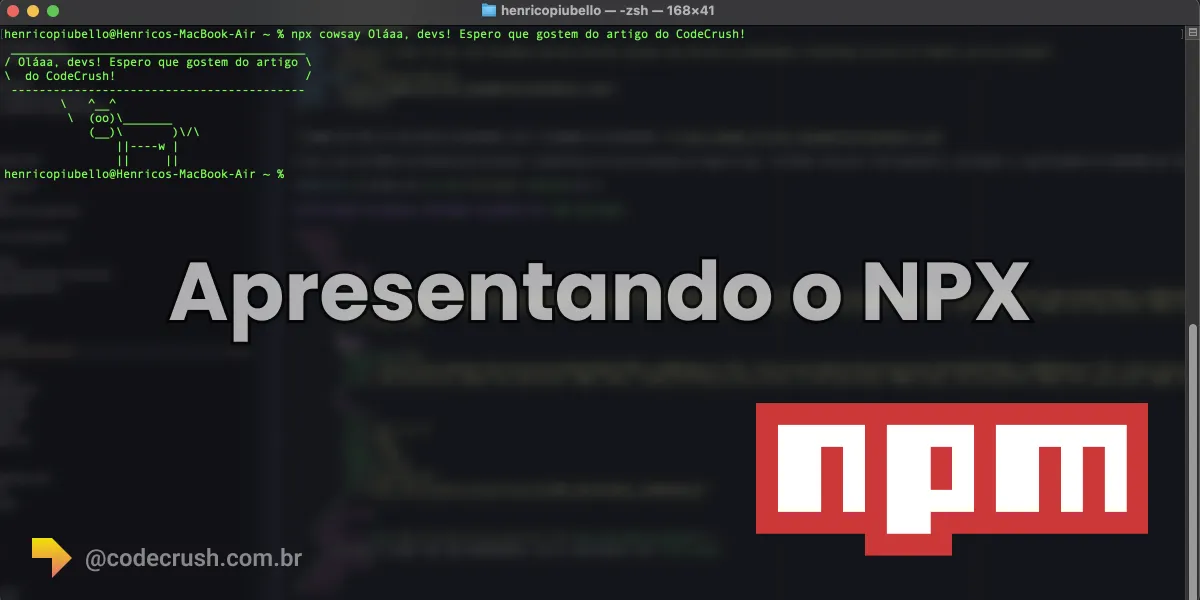
Cowsay itself has more history than a joke command suggests: we unpack its origin, parameters, and serious uses in the Cowsay API.
npx is a package runner that ships with npm since version 5.2.0 and is used to run command-line tools hosted on the npm registry without installing them globally. It resolves local project binaries automatically and downloads missing packages on demand, running everything right in the terminal.
- What is npx and how does it work?
- What is the difference between npm and npx?
- How to use local binaries without npm run-script?
- When to use npx for one-off commands?
- Running commands with other Node.js versions
- Developing run-scripts interactively with the -c option
What is npx and how does it work?
npx is the package execution tool built into npm: just as npm simplifies the installation and management of dependencies hosted on the registry, npx makes it easy to use CLI (Command Line Interface) tools and other executables published on that same registry — which today brings together more than 2 million packages, according to the official npm page.
The tool was released alongside npm@5.2.0, in July 2017. In the official announcement, Kat Marchán, then an engineer on the npm team, wrote: "Anyone who updates npm to the latest version, npm@5.2.0, will notice that it installs a new binary alongside the usual npm: npx" (free translation).
The operation follows a simple logic: when you type npx <command>, npx looks for the corresponding binary in the project's node_modules/.bin and in the global cache. If it finds it, it runs it right away; if it doesn't, it downloads the package from the registry to a temporary directory, runs it, and discards it, without touching your dependencies.
An important architectural detail: the official npm documentation records that "the npx binary was rewritten in npm v7.0.0, and the standalone npx package was deprecated at that time" (free translation). Since then, npx uses the npm exec command internally, maintaining compatibility with the arguments of previous versions. In practice, for anyone using an up-to-date Node.js, nothing changes: the npx command remains available in any standard installation.
What is the difference between npm and npx?
npm installs and manages dependencies; npx runs packages without installing them permanently. The table below summarizes the differences:
| Aspect | npm | npx |
|---|---|---|
| Main function | Install and manage dependencies | Run packages and binaries |
| Global install | Required to use CLIs | Dispensable: runs on demand |
| package.json | Records and versions dependencies | Does not change dependencies |
| Typical use | npm install express | npx create-react-app my-app |
| Available since | 2010, alongside Node.js | npm 5.2.0, in July 2017 |
In short: use npm when the package is part of the project and needs a controlled version; use npx when you just want to run a tool, once or occasionally. For a broader view of this ecosystem — including Yarn and pnpm — see our guide to package managers in the JavaScript universe.
How to use local binaries without npm run-script?
With npx, just type npx mocha (or whatever binary you prefer) inside the project: it locates the tool in node_modules/.bin and runs it, with no shell alias or manual paths.
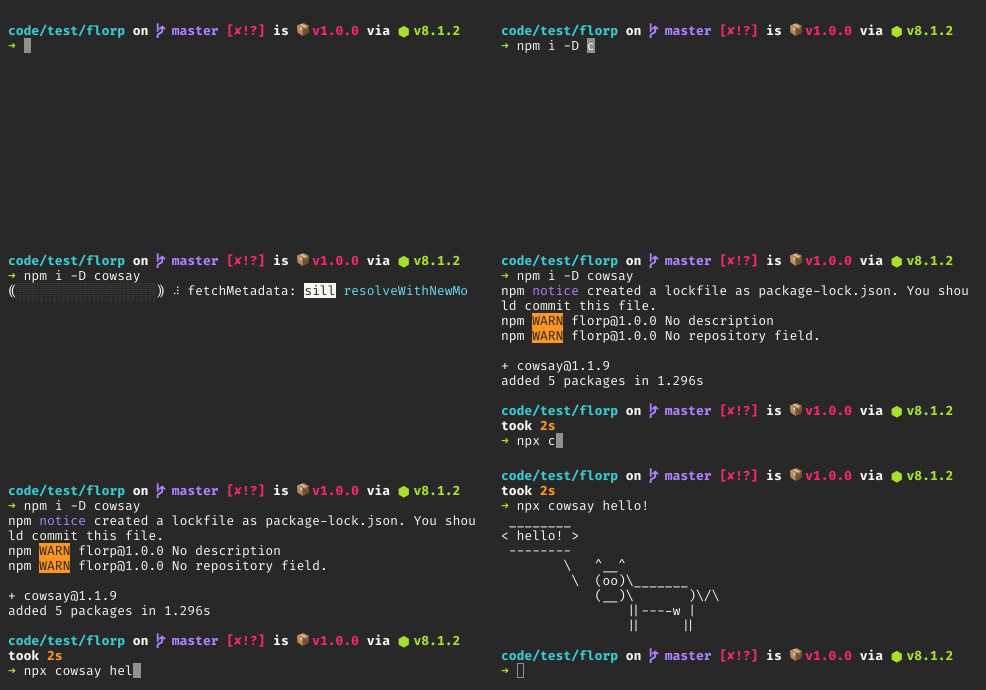
In recent years, the npm ecosystem has moved toward installing tools as local devDependencies of the project, rather than requiring global installations. Tools like mocha, grunt, and bower, which used to live system-wide, now have versions managed project by project. To start an npm-based project, just have node and npm on the system, clone the repository, and run npm it — which runs install and test. Since npm run-script adds local binaries to $PATH, everything works inside scripts.
The downside of this model is that it doesn't offer a convenient way to invoke local binaries interactively. The traditional alternatives have some annoyance: adding the tool to package.json scripts (and remembering to pass arguments with --), creating an alias like npmx=PATH=$(npm bin):$PATH, or typing the full path ./node_modules/.bin/mocha. They all work; none is ideal.
npx solves this with a single extra word in the terminal. And, for bonus points, npx has virtually no overhead when invoking an already-installed binary: it is smart enough to load the tool's code directly into the running node process, which makes it perfectly acceptable even for scripts. It is worth noting that the automatic shell fallback, suggested in the original 2017 announcement, was removed in npm v7 — the official documentation considers it inadvisable.
When to use npx for one-off commands?
Use npx whenever you want to try a command-line tool without installing it globally just to run it once. Calling npx <command> when the command is not in your $PATH automatically installs a package with that name from the npm registry and invokes it. When finished, the package does not remain in your globals — no long-term pollution.
This functionality is ideal for project generators. Tools like yeoman or create-react-app are called from time to time; between one use and the next, the installed version would already be outdated, so you would end up reinstalling anyway. With npx, each run uses the latest version — that is exactly how many devs take their first steps with React.
For those maintaining open-source tools, there is another benefit: putting $ npx my-tool in the README.md instructions removes the installation hurdle. Saying "copy and paste this single command, no commitment" convinces far more hesitant users than asking for a global install.
Some fun tools to try with npx: happy-birthday, benny-hill, workin-hard, yo, and npm-check. There is even an entire repository dedicated to the topic, awesome-npx.
Running commands with other Node.js versions
npx also replaces version managers in quick tests. There is a package called node on the npm registry, created by Aria Stewart, that packages the runtime itself. Combined with npx's -p option — which specifies packages to install and add to the execution's $PATH — it lets you experiment with commands in different Node.js versions without installing a manager like nvm, nave, or n.
A practical example: $ npx -p node@18 npm it installs and tests your current package as if node@18 were installed globally, even if your machine runs another version. This is useful for verifying compatibility with the minimum Node.js version your package declares support for before publishing — a quick complement to the CI test matrix.
Developing run-scripts interactively with the -c option
Many npm users take advantage of the run-script feature, which in addition to organizing $PATH with local binaries, injects dozens of environment variables accessible in those scripts — you can list them with $ npm run env | grep npm_. The problem: developing and testing these scripts interactively is complicated, because outside of run-script these magic variables do not exist, even with tricks like $(npm bin)/some-bin.
npx has a trick for this: with the -c option, the script written inside the string argument gets full access to the same environment variables as a regular run-script — including pipes and multiple commands in a single invocation.
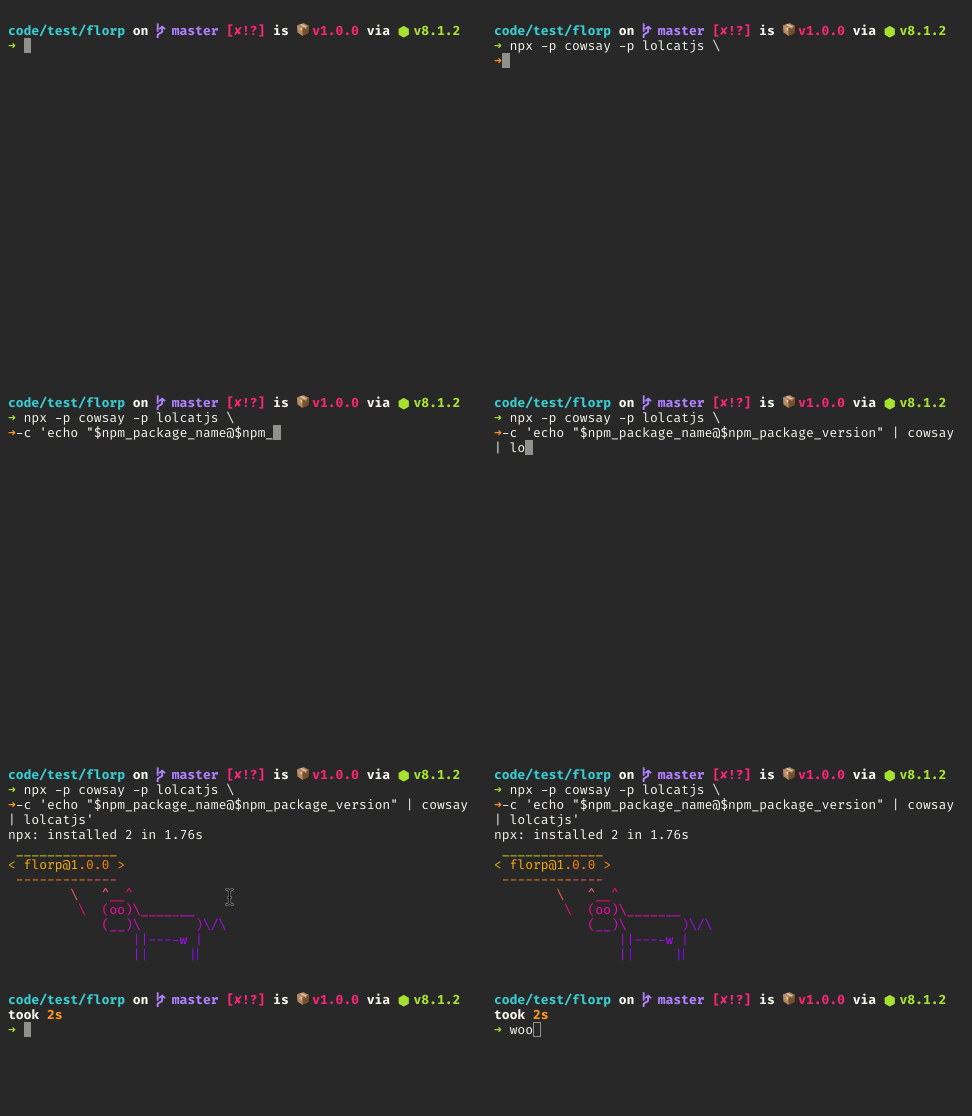
The command in the demonstration above, npx -p cowsay -p lolcatjs -c 'echo "$npm_package_name@$npm_package_version" | cowsay | lolcatjs', installs the two packages temporarily and gives the script access to the $npm_* variables, printing the name and version of the current package in a colorful cowsay.
Conclusion
npx is one of those small tools that change habits: once you incorporate npx <tool> into your daily routine, installing CLIs globally starts to seem unnecessary in most cases. CodeCrush's practical recommendation is straightforward — use npm for project dependencies, npx for one-off runs, and pin the version (npx package@version) whenever the command goes into a script or pipeline, ensuring reproducible builds and fewer security surprises.
Recommended for this topic
Picked by the editors — only what we would use.
## faq
Frequently asked questions
What is npx for?
npx is used to run command-line tools published on the npm registry without installing them globally. It locates binaries installed in the project (node_modules/.bin) or downloads the package on demand, runs it, and discards it. It is ideal for project generators, one-off utilities, and scripts that need a specific version of a tool.
What is the difference between npm and npx?
npm installs and manages a project's dependencies; npx runs packages. With npm you add libraries to package.json and control versions; with npx you run a binary immediately, locally or remotely, without changing your dependencies. Since npm v7, npx is implemented on top of the npm exec command.
Do I need to install npx separately?
No. npx ships with npm since version 5.2.0, released in July 2017, and any current Node.js installation already includes it. The standalone npx package was deprecated in npm v7.0.0, when the binary started using npm exec internally. Just keep Node.js updated to have the latest version.
Does npx download the package every time I run a command?
It depends. If the package is already installed in the project or globally, npx uses the existing binary, with virtually no overhead. If it is not, npx downloads the latest version to a temporary cache, runs it, and does not add anything to your dependencies. Current versions ask for confirmation before downloading new packages.
Is it safe to run npx with any package?
Not always. npx executes code from the npm registry on your machine, and malicious packages or typosquatting are real risks. Prefer well-known packages, check the exact name before running, and pin versions (npx package@version) in scripts. Since npm v7, npx asks for confirmation before installing missing packages.
Topics in this article
## continue lendo
Artigos relacionados


Keep browsing
Previous article

Productivity for devs: behind the scenes of a tech career
Developer productivity comes from habits: continuous learning, mastering the fundamentals, and critical use of AI. See the secrets behind the scenes.
Read moreNext article

How to get started with React: a step-by-step guide
React is the most used JavaScript library for building web interfaces. Learn to create your first app with Node.js, npx, and Vite step by step.
Read moreAbout the author